This documentation site is built with Markdown files, making it easy to write and maintain documentation for Owncast. This guide covers the conventions and best practices for contributing to the documentation.
For most documentation contributions, you will be working with files in the docs/ directory and simply changing or adding text to existing files.
- Clone this repository
- Make your changes to files in the
docs/directory - Submit a pull request
Documentation files can use either .md (Markdown) or .mdx (MDX) extensions:
.md- Use for simple documentation pages that only need standard Markdown features. This is generally all you need to worry about..mdx- Use when you need to import and use React components, such as custom components or other MDX files.
Every documentation page should have frontmatter at the top of the file. This YAML block controls how the page appears in navigation and search.
---
title: Your Page Title
description: A brief description for SEO and previews.
sidebar_label: Short Nav Label
sidebar_position: 100
tags:
  - relevant-tag
  - another-tag
---| Property | Description |
|---|---|
title |
The page title displayed in the browser tab and as the main heading |
description |
Used for SEO meta tags and search result previews |
sidebar_label |
Shorter label shown in the sidebar navigation (optional) |
sidebar_position |
Numeric value controlling sort order in the sidebar |
tags |
Array of tags for categorization and related docs matching |
For content that appears on multiple pages, create a shared file and include it using the IncludeMarkdown component. This is useful for:
- Common troubleshooting steps
- Diagrams that appear in multiple contexts
- Repeated instructions or warnings
Shared content files are typically stored in:
docs/shared/- General shared contentdocs/troubleshoot/shared/- Shared troubleshooting contentdocs/shared/diagrams/- Reusable diagrams
import { IncludeMarkdown } from "@site/src/components";
import CpuUsage from "./shared/cpu-usage.md";

<IncludeMarkdown>
  <CpuUsage />
</IncludeMarkdown>;
Note: Shared content files should have empty or minimal frontmatter since they're embedded within other pages:
---
title: ""
description: ""
unlisted: true
related:
  excludeFromAll: true
---The sidebar is configured in sidebars.ts. Categories can be:
- Explicitly defined with specific document ordering
- Auto-generated from a directory using
type: "autogenerated"
If you're adding a new page to an existing category, you may need to update sidebars.ts to include it, or use sidebar_position in frontmatter for auto-generated sections.
Use admonitions to highlight important information:
:::tip
Helpful tips and best practices go here.
:::

:::note
General information or clarifications.
:::

:::warning
Important warnings that users should be aware of.
:::

:::info
Additional context or background information.
:::

:::caution
Potential issues or things to be careful about.
:::

:::danger
Critical warnings about destructive actions or security concerns.
:::Place images and other static files in the static/ directory:
static/images/- General imagesstatic/docs/- Documentation-specific screenshots
Reference images in your markdown using absolute paths from the static root:

Use these link formats:
<!-- Link to another doc page -->

[Configure your stream](/docs/getting-started/configure-first-stream)

<!-- Link to a specific section -->

[CPU usage settings](/docs/video/#cpu-usage)

<!-- External links -->

[Docusaurus documentation](https://docusaurus.io/)Use the unlisted frontmatter property to hide a page from search results, navigation, and sitemaps while keeping it accessible via direct URL:
---
unlisted: true
---
This will:
- Exclude the page from local search results
- Exclude from sitemaps (won't be indexed by Google)
- Hide from sidebar navigation
- Add
noindexmeta tag
The page remains accessible if someone has the direct link. Use this for pages that should exist but not be discoverable, such as:
- Legacy documentation kept for existing links
- Pages under review or in soft-deprecation
- Special pages only shared with specific users
Docs with the same tags, in the same sidebar category, or with similar titles are automatically linked as "related docs" at the bottom of each page.
You can customize this behavior with the related frontmatter field:
---
related:
  include:
    - /docs/document1 # Always show this as related
  exclude:
    - /docs/document2 # Never show this as related on THIS page
  max: 8 # Max related docs to show (default: 6)
  minScore: 0.08 # Minimum similarity score (default: 0.06)
  disable: true # Hide the related docs section on this page
  excludeFromAll: true # Prevent this doc from appearing in ANY related docs list
---| Option | Description |
|---|---|
include |
Array of doc paths to always include as related, regardless of similarity score |
exclude |
Array of doc paths to exclude from this page's related docs |
max |
Maximum number of related docs to display |
minScore |
Minimum similarity threshold (0-1) for a doc to appear as related |
disable |
Set to true to hide the related docs section on this page |
excludeFromAll |
Set to true to prevent this doc from appearing as a related doc on any other page |
This website is built using Docusaurus, a modern static website generator.
npm installnpm startThis command starts a local development server and opens up a browser window. Most changes are reflected live without having to restart the server.
npm run buildThis site supports multiple languages using Docusaurus's built-in internationalization system.
Translations are stored in the i18n/ directory:
i18n/
├── es/                          # Spanish translations
│   ├── code.json                # React component strings (homepage, etc.)
│   ├── docusaurus-theme-classic/
│   │   ├── navbar.json          # Navbar labels
│   │   └── footer.json          # Footer labels
│   └── docusaurus-plugin-content-docs/
│       └── current.json         # Doc sidebar labels
├── fr/                          # French translations
└── de/                          # German translations
To translate documentation pages, copy them to the locale directory:
# Copy docs to translate
mkdir -p i18n/es/docusaurus-plugin-content-docs/current
cp -r docs/* i18n/es/docusaurus-plugin-content-docs/current/For JSX/React components, use translate() for string props and <Translate> for JSX content:
import Translate, { translate } from "@docusaurus/Translate";

// For props/attributes - use translate()
<MyComponent
  title={translate({
    id: "homepage.hero.title",
    message: "Default English text",
  })}
/>

// For JSX content - use <Translate>
<button>
  <Translate id="homepage.hero.cta">Get Started</Translate>
</button>After adding translate() or <Translate> calls, extract strings to JSON files:
# Extract for a specific locale
npm run write-translations -- --locale es
npm run write-translations -- --locale fr
npm run write-translations -- --locale de
This generates/updates the i18n/<locale>/code.json file with all translatable strings.
Then translate the copied Markdown files.
# Start dev server for a specific locale
npm run start -- --locale es

# Build for a specific locale
npm run build -- --locale es

# Build all locales
npm run build- Update
docusaurus.config.ts:
i18n: {
  defaultLocale: "en",
  locales: ["en", "es", "fr", "de", "NEW_LOCALE"],
  localeConfigs: {
    // ... existing configs
    NEW_LOCALE: {
      label: "Language Name",
      htmlLang: "locale-code",
    },
  },
},- Extract translation strings:
npm run write-translations -- --locale NEW_LOCALE- Translate the generated JSON files in
i18n/NEW_LOCALE/
The code.json files contain key-value pairs:
{
  "homepage.hero.title": {
    "message": "Text to translate",
    "description": "Optional context for translators"
  }
}
Replace the message value with the translated text. The description field (if present) provides context and should not be translated.
The site includes a custom language switcher in the navbar that displays flag emojis for each supported locale. The implementation is in src/theme/NavbarItem/LocaleDropdownNavbarItem/.
Behavior:
- Displays the current locale's flag in the navbar
- Dropdown shows all available locales with flags and full language names
- Only visible when the browser's language is not English OR the user has already navigated to a non-English locale
- English-speaking users with English browsers won't see the switcher unless they're on a translated page
Supported locales and flags:
| Locale | Language | Flag |
|---|---|---|
en |
English | US |
es |
Spanish | ES |
fr |
French | FR |
de |
German | DE |
The site automatically detects the user's browser language and redirects to the appropriate locale on their first visit. This is implemented in src/theme/Root.tsx.
How it works:
- On first visit, checks the browser's preferred languages (
navigator.languages) - If a supported non-English locale (Spanish, French, or German) is detected, redirects to that locale's version of the current page
- Stores a flag (
owncast_locale_redirected) in localStorage to prevent future automatic redirects - Users who manually switch languages will have their choice preserved
When redirect occurs:
- User's browser language is Spanish, French, or German
- User has not been redirected before (no localStorage flag)
- User is not already on a localized path (e.g.,
/es/docs/)
When redirect does NOT occur:
- User's browser language is English or unsupported
- User has already been redirected (localStorage flag exists)
- User is already viewing a localized page
Testing locale detection:
To test the automatic redirect, clear the localStorage flag:
localStorage.removeItem("owncast_locale_redirected");Then change your browser's language settings and reload the page.
When adding a new locale, update the following files:
-
docusaurus.config.ts- Add the locale configuration (see "Adding a new locale" above) -
src/theme/NavbarItem/LocaleDropdownNavbarItem/index.tsx- Add the flag emoji:
const localeFlags: Record<string, string> = {
  en: "\u{1F1FA}\u{1F1F8}", // US flag
  es: "\u{1F1EA}\u{1F1F8}", // Spain flag
  fr: "\u{1F1EB}\u{1F1F7}", // France flag
  de: "\u{1F1E9}\u{1F1EA}", // Germany flag
  // Add new locale here
};src/theme/Root.tsx- Add to the supported locales array for auto-detection:
const SUPPORTED_LOCALES = ["es", "fr", "de"]; // Add new locale hereThis project supports Crowdin for managing translations. For details on setting up Crowdin sync, refer to the Docusaurus Crowdin documentation.
Visit the Crowdin documentation for how to perform the translation process for more details.
Select the document you want to translate and translate all or part of it.
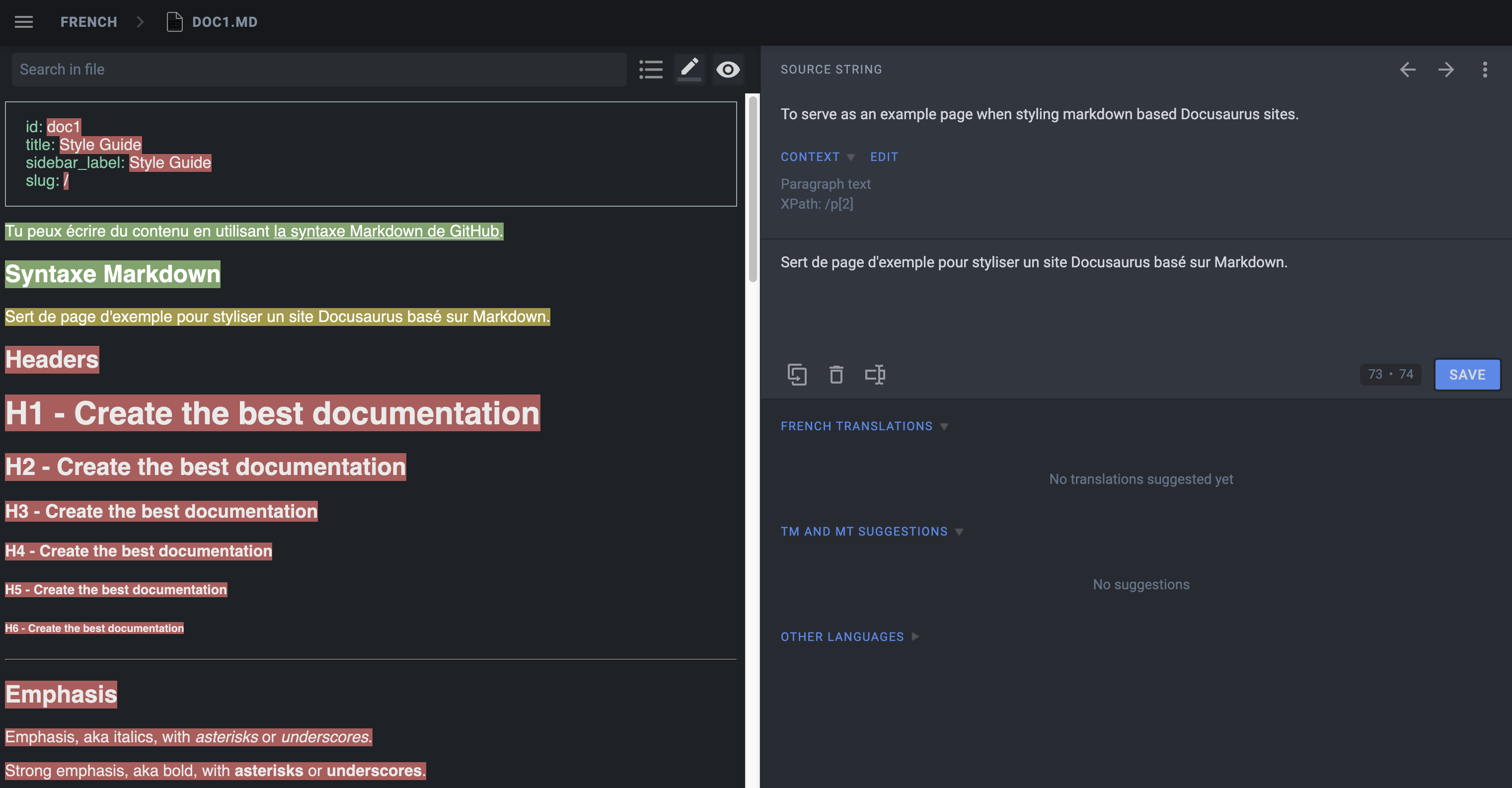
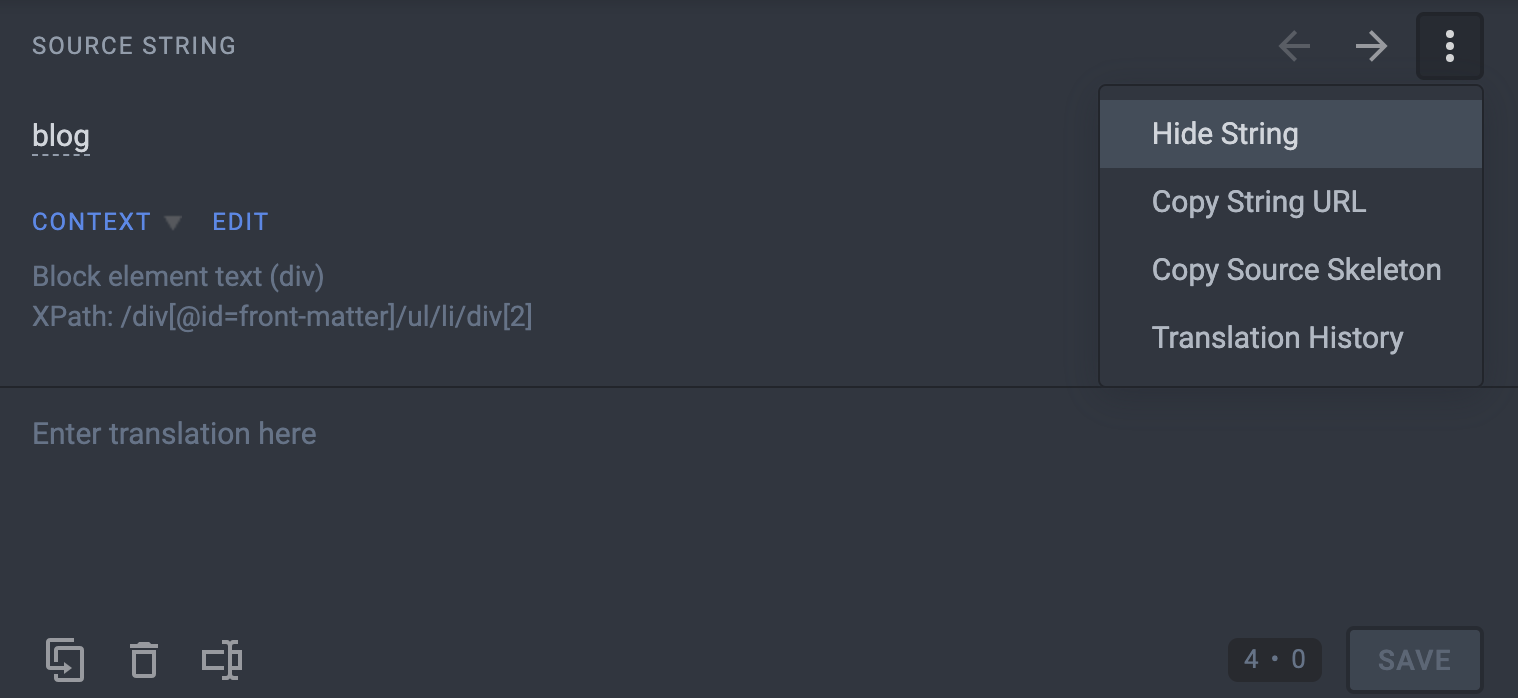
Hide strings from translation that should not be translated.
If you move documentation files around in the repository, Crowdin will treat them as new files and the existing translations will not be associated with the new location.
If you need to move files, please reach out to the maintainers so they can help with updating Crowdin to avoid losing existing translations.